3. Plotting and Debugging
Plotting
For Errors & debugging it is necessary to visualize the graph-operation (e.g. to see why nodes where pruned). You may plot any plottable and annotate on top the execution plan and solution of the last computation, calling methods with arguments like this:
pipeline.plot(True)                    # open a matplotlib window
pipeline.plot("pipeline.svg")          # other supported formats: png, jpg, pdf, ...
pipeline.plot()                        # without arguments return a pydot.DOT object
pipeline.plot(solution=solution)       # annotate graph with solution values
solution.plot()                        # plot solution only
… or for the last …:
solution.plot(...)
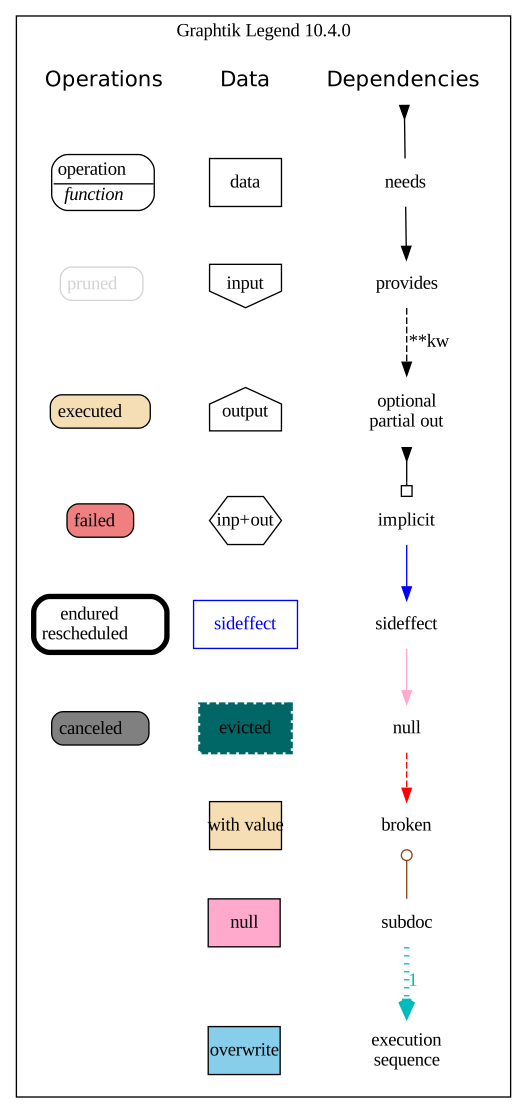
The legend for all graphtik diagrams, generated by legend().
The same Plottable.plot() method applies also for:
each one capable to producing diagrams with increasing complexity.
For instance, when a pipeline has just been composed, plotting it will
come out bare bone, with just the 2 types of nodes (data & operations), their
dependencies, and (optionally, if plot theme show_steps is true)
the sequence of the execution-steps of the plan.
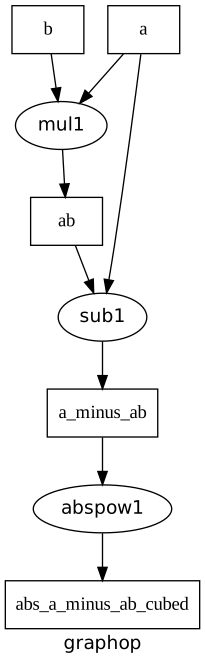
But as soon as you run it, the net plot calls will print more of the internals.
Internally it delegates to ExecutionPlan.plot() of the plan.
attribute, which caches the last run to facilitate debugging.
If you want the bare-bone diagram, plot the network:
pipeline.net.plot(...)
If you want all details, plot the solution:
solution.net.plot(...)
Note
For plots, Graphviz program must be in your PATH,
and pydot & matplotlib python packages installed.
You may install both when installing graphtik with its plot extras:
pip install graphtik[plot]
Tip
A description of the similar API to pydot.Dot instance returned by plot()
methods is here: https://pydotplus.readthedocs.io/reference.html#pydotplus.graphviz.Dot
Jupyter notebooks
The pydot.Dot instances returned by
Plottable.plot() are rendered directly in Jupyter/IPython notebooks
as SVG images.
You may increase the height of the SVG cell output with something like this:
pipeline.plot(jupyter_render={"svg_element_styles": "height: 600px; width: 100%"})
See default_jupyter_render for those defaults and recommendations.
Plot customizations
Rendering of plots is performed by the active plotter (class plot.Plotter).
All Graphviz styling attributes are controlled by the active plot theme,
which is the plot.Theme instance installed in its Plotter.default_theme
attribute.
The following style expansion\s apply in the attribute-values
of Theme instances:
Call any callables found as keys, values or the whole style-dict, passing in the current
plot_args, and replace those with the callable’s result (even more flexible than templates).Resolve any
Refinstances, first against the current nx_attrs and then against the attributes of the current theme.Render jinja2 templates with template-arguments all attributes of
plot_argsinstance in use, (hence much more flexible thanRef).Any Nones results above are discarded.
Workaround pydot/pydot#228 pydot-cstor not supporting styles-as-lists.
Merge tooltip & tooltip lists.
You may customize the theme and/or plotter behavior with various strategies, ordered by breadth of the effects (most broadly effecting method at the top):
(zeroth, because it is discouraged!)
Modify in-place
Themeclass attributes, and monkeypatchPlottermethods.This is the most invasive method, affecting all past and future plotter instances, and future only(!) themes used during a Python session.
Attention
It is recommended to use other means for Plot customizations instead of modifying directly theme’s class-attributes.
All
Themeclass-attributes are deep-copied when constructing new instances, to avoid modifications by mistake, while attempting to update instance-attributes instead (hint: allmost all its attributes are containers i.e. dicts). Therefore any class-attributes modification will be ignored, until a newThemeinstance from the patched class is used .
Modify the
default_themeattribute of the default active plotter, like that:get_active_plotter().default_theme.kw_op["fillcolor"] = "purple"
This will affect all
Plottable.plot()calls for a Python session.Create a new
Plotterwith customizedPlotter.default_theme, or clone and customize the theme of an existing plotter by the use of itsPlotter.with_styles()method, and make that the new active plotter.This will affect all calls in
context.If customizing theme constants is not enough, you may subclass and install a new
Plotterclass in context.
Pass theme or plotter arguments when calling
Plottable.plot():pipeline.plot(plotter=Plotter(kw_legend=None)) pipeline.plot(theme=Theme(show_steps=True)
You may clone and customize an existing plotter, to preserve any pre-existing customizations:
active_plotter = get_active_plotter()
pipeline.plot(theme={"show_steps": True})
… OR:
pipeline.plot(plotter=active_plotter.with_styles(kw_legend=None))
You may create a new class to override Plotter’s methods that way.
Hint
This project dogfoods (3) in its own
docs/source/conf.pysphinx file. In particular, it configures the base-url of operation node links (by default, nodes do not link to any url):## Plot graphtik SVGs with links to docs. # def _make_py_item_url(fn): if not inspect.isbuiltin(fn): fn_name = base.func_name(fn, None, mod=1, fqdn=1, human=0) if fn_name: return f"../reference.html#{fn_name}" plotter = plot.get_active_plotter() plot.set_active_plotter( plot.get_active_plotter().with_styles( kw_op_label={ **plotter.default_theme.kw_op_label, "op_url": lambda plot_args: _make_py_item_url(plot_args.nx_item), "fn_url": lambda plot_args: _make_py_item_url(plot_args.nx_item.fn), } ) )
Sphinx-generated sites
This library contains a new Sphinx extension (adapted from the sphinx.ext.doctest)
that can render plottables in sites from python code in “doctests”.
To enabled it, append module graphtik.sphinxext as a string in you docs/conf.py
: extensions list, and then intersperse the graphtik or graphtik-output
directives with regular doctest-code to embed graph-plots into the site; you may
refer to those plotted graphs with the graphtik role referring to
their :name: option(see Examples below).
Hint
Note that Sphinx is not doctesting the actual python modules, unless the plotting code has ended up, somehow, in the site (e.g. through some autodoc directive). Contrary to pytest and doctest standard module, the module’s globals are not imported (until sphinx#6590 is resolved), so you may need to import it in your doctests, like this:
Unfortunately, you cannot use relative import, and have to write your module’s full name.
Directives
- .. graphtik::
Renders a figure with a graphtik plots from doctest code.
It supports:
all configurations from
sphinx.ext.doctestsphinx-extension, plus those described below, in Configurations.all options from ‘doctest’ directive,
hide
options
pyversion
skipif
these options from
imagedirective, excepttarget(plot elements may already link to URLs):height
width
scale
class
alt
these options from
figuredirective:name
align
figwidth
figclass
and the following new options:
graphvar
graph-format
caption
Specifically the “interesting” options are these:
- :graphvar: (string, optional) varname (`str`)
the variable name containing what to render, which it can be:
an instance of
Plottable(such asFnOp,Pipeline,Network,ExecutionPlanorSolution);an already plotted
pydot.Dotinstance, ie, the result of aPlottable.plot()call
If missing, it renders the last variable in the doctest code assigned with the above types.
Attention
If no
:graphvar:is given and the doctest code fails, it will still render any plottable created from code that has run previously, without any warnings!
- :graph-format: png | svg | svgz | pdf | `None` (choice, default: `None`)
- if None, format decided according to active builder, roughly:
“html”-like: svg
“latex”: pdf
Note that SVGs support zooming, tooltips & URL links, while PNGs support image maps for linkable areas.
- :zoomable: <empty>, (true, 1, yes, on) | (false, 0, no, off) (`bool`)
Enable/disable interactive pan+zoom of SVGs; if missing/empty,
graphtik_zoomableassumed.
- :zoomable-opts: <empty>, (true, 1, yes, on) | (false, 0, no, off) (`str`)
A JS-object with the options for the interactive zoom+pan pf SVGs. If missing,
graphtik_zoomable_optionsassumed. Specify{}explicitly to force library’s default options.
- :name: link target id (`str`)
Make this pipeline a hyperlink target identified by this name. If :name: given and no :caption: given, one is created out of this, to act as a permalink.
- :caption: figure's caption (`str`)
Text to put underneath the pipeline.
- .. graphtik-output::
Like
graphtik, but works like doctest’stestoutputdirective.
- :graphtik:
An interpreted text role to refer to graphs plotted by
graphtikorgraphtik-outputdirectives by their:name:option.
Configurations
- graphtik_default_graph_format
type: Union[str, None]
default: None
The file extension of the generated plot images (without the leading dot .`), used when no
:graph-format:option is given in agraphtikorgraphtik-outputdirective.If None, the format is chosen from
graphtik_graph_formats_by_builderconfiguration.
- graphtik_graph_formats_by_builder
type: Map[str, str]
default: check the sources
a dictionary defining which plot image formats to choose, depending on the active builder.
Keys are regexes matching the name of the active builder;
values are strings from the supported formats for pydot library, e.g.
png(seesupported_plot_formats()).
If a builder does not match to any key, and no format given in the directive, no graphtik plot is rendered; so by default, it only generates plots for html & latex.
Warning
Latex is probably not working :-(
- graphtik_zoomable_svg
type: bool
default:
True
Whether to render SVGs with the zoom-and-pan javascript library, unless the
:zoomable:directive-option is given (and not empty).Attention
Zoom-and-pan does not work in Sphinx sites for Chrome locally - serve the HTML files through some HTTP server, e.g. launch this command to view the site of this project:
python -m http.server 8080 --directory build/sphinx/html/
- graphtik_zoomable_options
type: str
default:
{"controlIconsEnabled": true, "fit": true}
A JS-object with the options for the interactive zoom+pan pf SVGs, when the
:zoomable-opts:directive option is missing. If empty,{}assumed (library’s default options).
- graphtik_plot_keywords
type: dict
default:
{}
Arguments or
build_pydot()to apply when rendering plottables.
- graphtik_save_dot_files
- - type: `bool`, `None`
- - default: ``None``
For debugging purposes, if enabled, store another
<img>.txtfile next to each image file with the DOT text that produced it.When
none(default), controlled by DEBUG flag from configurations, otherwise, any boolean takes precedence here.
- graphtik_warning_is_error
type: bool
default:
false
If false, suppress doctest errors, and avoid failures when building site with
-Woption, since these are unrelated to the building of the site.
doctest_test_doctest_blocks(foreign config)Don’t disable doctesting of literal-blocks, ie, don’t reset the
doctest_test_doctest_blocksconfiguration value, or else, such code would be invisible tographtikdirective.trim_doctest_flags(foreign config)This configuration is forced to
False(default wasTrue).Attention
This means that in the rendered site, options-in-comments like
# doctest: +SKIPand<BLACKLINE>artifacts will be visible.
Examples
The following directive renders a diagram of its doctest code, beneath it:
.. graphtik::
   :graphvar: addmul
   :name: addmul-operation

   >>> from graphtik import compose, operation
   >>> addmul = compose(
   ...       "addmul",
   ...       operation(name="add", needs="abc".split(), provides="(a+b)×c")(lambda a, b, c: (a + b) * c)
   ... )
addmul-operation
which you may reference with this syntax:
you may :graphtik:`reference <addmul-operation>` with ...
Hint
In this case, the :graphvar: parameter is not really needed, since
the code contains just one variable assignment receiving a subclass
of Plottable or pydot.Dot instance.
Additionally, the doctest code producing the plottables does not have to be contained in the graphtik directive as a whole.
So the above could have been simply written like this:
>>> from graphtik import compose, operation
>>> addmul = compose(
...       "addmul",
...       operation(name="add", needs="abc".split(), provides="(a+b)×c")(lambda a, b, c: (a + b) * c)
... )

.. graphtik::
   :name: addmul-operation
Errors & debugging
Graphs are complex, and execution pipelines may become arbitrarily deep. Launching a debugger-session to inspect deeply nested stacks is notoriously hard.
This projects has dogfooded various approaches when designing and debugging pipelines.
Logging
The 1st pit-stop it to increase the logging verbosity.
Logging statements have been melticulously placed to describe the pruning
while planning and subsequent execution flow;
execution flow log-statements are accompanied by the unique solution id of each flow, like the (3C40) & (8697) below,
important for when running pipelines in (deprecated) parallel:
--------------------- Captured log call ---------------------
INFO    === Compiling pipeline(t)...
INFO    ... pruned step #4 due to unsatisfied-needs['d'] ...
DEBUG   ... adding evict-1 for not-to-be-used NEED-chain{'a'} of topo-sorted #1 OpTask(FnOp|(name='...
DEBUG    ... cache-updated key: ((), None, None)
INFO    === (3C40) Executing pipeline(t), in parallel, on inputs[], according to ExecutionPlan(needs=[], provides=['b'], x2 steps: op1, op2)...
DEBUG    +++ (3C40) Parallel batch['op1'] on solution[].
DEBUG    +++ (3C40) Executing OpTask(FnOp|(name='op1', needs=[], provides=[sfx: 'b'], fn{}='<lambda>'), sol_keys=[])...
INFO     graphtik.fnop.py:534 Results[sfx: 'b'] contained +1 unknown provides[sfx: 'b']
FnOp|(name='op1', needs=[], provides=[sfx: 'b'], fn{}='<lambda>')
INFO    ... (3C40) op(op1) completed in 1.406ms.

...

DEBUG    === Compiling pipeline(t)...
DEBUG    ... cache-hit key: ((), None, None)
INFO    === (8697) Executing pipeline(t), evicting, on inputs[], according to ExecutionPlan(needs=[], provides=['b'], x3 steps: op1, op2, sfx: 'b')...
DEBUG    +++ (8697) Executing OpTask(FnOp(name='op1', needs=[], provides=[sfx: 'b'], fn{}='<lambda>'), sol_keys=[])...
INFO     graphtik.fnop.py:534 Results[sfx: 'b'] contained +1 unknown provides[sfx: 'b']
FnOp(name='op1', needs=[], provides=[sfx: 'b'], fn{}='<lambda>')
INFO    ... (8697) op(op1) completed in 0.149ms.
DEBUG    +++ (8697) Executing OpTask(FnOp(name='op2', needs=[sfx: 'b'], provides=['b'], fn='<lambda>'), sol_keys=[sfx: 'b'])...
INFO    ... (8697) op(op2) completed in 0.08ms.
INFO    ... (8697) evicting 'sfx: 'b'' from solution[sfx: 'b', 'b'].
INFO    === (8697) Completed pipeline(t) in 0.229ms.
Particularly usefull are the the “pruned step #…” logs, where they explain why the network does not behave as expected.
DEBUG flag
The 2nd pit-stop is to make DEBUG in configurations
returning true, either by calling set_debug(), or externally,
by setting the GRAPHTIK_DEBUG environment variable,
to enact the following:
on errors, plots the 1st errored solution/plan/pipeline/net (in that order) in an SVG file inside the temp-directory, and its path is logged in ERROR-level;
jetsam logs in ERROR (instead of in DEBUG) all annotations on all calls up the stack trace (logged from
graphtik.jetsam.errlogger);FnOp.compute()prints out full given-inputs (not just their keys);net objects print more details recursively, like fields (not just op-names) and prune-comments;
plotted SVG diagrams include style-provenance as tooltips;
Sphinx extension also saves the original DOT file next to each image (see
graphtik_save_dot_files).
Of particular interest is the automatic plotting of the failed plottable.
Tip
From code you may wrap the code you are interested in with config.debug_enabled()
“context-manager”, to get augmented print-outs for selected code-paths only.
Jetsam on exceptions
If you are on an interactive session, you may access many in-progress variables
on raised exception (e.g. sys.last_value) from their “jetsam” attribute,
as an immediate post-mortem debugging aid:
>>> from graphtik import compose, operation
>>> from pprint import pprint
>>> def scream(*args):
...     raise ValueError("Wrong!")
>>> try:
...     compose("errgraph",
...             operation(name="screamer", needs=['a'], provides=["foo"])(scream)
...     )(a=None)
... except ValueError as ex:
...     pprint(ex.jetsam)
{'aliases': None,
 'args': {'kwargs': {}, 'positional': [None], 'varargs': []},
 'network': Network(x3 nodes, x1 ops: screamer),
 'operation': FnOp(name='screamer', needs=['a'], provides=['foo'], fn='scream'),
 'outputs': None,
 'pipeline': Pipeline('errgraph', needs=['a'], provides=['foo'], x1 ops: screamer),
 'plan': ExecutionPlan(needs=['a'], provides=['foo'], x1 steps: screamer),
 'results_fn': None,
 'results_op': None,
 'solution': {'a': None},
 'task': OpTask(FnOp(name='screamer', needs=['a'], provides=['foo'], fn='scream'), sol_keys=['a'])}
In interactive REPL console you may use this to get the last raised exception:
import sys

sys.last_value.jetsam
The following annotated attributes might have meaningful value on an exception (press [Tab] to auto-complete):
solution– the most usefull object to inspect (plot) – an instance of
Solution, containing inputs & outputs till the error happened; note thatSolution.executedcontain the list of executed operations so far.planthe innermost plan that executing when a operation crashed
networkthe innermost network owning the failed operation/function
pruned_dagThe result of pruning, ingredient of a plan while compiling.
op_commentsReason why operations were pruned. Ingredient of a plan while compiling.
sorted_nodesTopo-sort dag respecting operation-insertion order to break ties. Ingredient of a plan while compiling.
needsprovidespipelinethe innermost pipeline that crashed
operationthe innermost operation that failed
argseither the input arguments list fed into the function, or a dict with both
args&kwargskeys in it.outputsthe names of the outputs the function was expected to return
providesthe names eventually the graph needed from the operation; a subset of the above, and not always what has been declared in the operation.
fn_resultsthe raw results of the operation’s function, if any
op_resultsthe results, always a dictionary, as matched with operation’s provides
plot_fpathif DEBUG flag is enabled, the path where the broken plottable has been saved
Of course you may plot some “jetsam” values, to visualize the condition that caused the error (see Plotting).
Debugger
The Plotting capabilities, along with the above annotation of exceptions with the internal state of plan/operation often renders a debugger session unnecessary. But since the state of the annotated values might be incomplete, you may not always avoid one.
You may to enable “post mortem debugging” on any program,
but a lot of utilities have a special --pdb option for it, like pytest
(or scrapy).
For instance, if you are extending this project, to enter the debugger when a test-case breaks, call
pytest --pdb -k <test-case>from the console.Alternatively, you may set a
breakpoint()anywhere in your (or 3rd-party) code.
As soon as you arrive in the debugger-prompt, move up a few frames until you locate
either the Solution, or the ExecutionPlan instances,
and plot them.
It takes some practice to familiarize yourself with the internals of graphtik, for instance:
in
FnOp._match_inputs_with_fn_needs()method, the the solution is found in thenamed_inputsargument. For instance, to index with the 1st needs into the solution:named_inputs[self.needs[0]]
in
ExecutionPlan._handle_task()method, thesolutionargument contains the “live” instance, whileThe
ExecutionPlanis contained in theSolution.plan, orthe plan is the
selfargument, if arrived in theNetwork.compile()method.
Setting a breakpoint on a specific operation
You may take advantage of the callbacks facility and install a breakpoint for a specific operation before calling the pipeline.
Add this code (interactively, or somewhere in your sources):
def break_on_my_op(op_cb):
   if op_cb.op.name == "buggy_operation":
         breakpoint()
And then call you pipeline with the callbacks argument:
pipe.compute({...}, callbacks=break_on_my_op)
And that way you may single-step and inspect the inputs & outputs
of the buggy_operation.
Accessing wrapper operation from task-context
Attention
Unstable API, in favor of supporting a specially-named function argument to receive the same instances.
Alternatively, when the debugger is stopped inside an underlying function,
you may access the wrapper FnOp and the Solution
through the graphtik.execution.task_context context-var.
This is populated with the OpTask instance of the currently executing operation,
as shown in the pdb session printout, below:
(Pdb) from graphtik.execution import task_context
(Pdb) op_task = task_context.get()
Get possible completions on the returned operation-task with [TAB]:
(Pdb) p op_task.[TAB][TAB]
op_task.__call__
op_task.__class__
...
op_task.get
op_task.logname
op_task.marshalled
op_task.op
op_task.result
op_task.sol
op_task.solid
Printing the operation-task gives you a quick overview of the operation and the available solution keys (but not the values, not to clutter the debugger console):
(Pdb) p op_task
OpTask(FnOp(name=..., needs=..., provides=..., fn=...), sol_keys=[...])
Print the wrapper operation:
(Pdb) p op_task.op
...
Print the solution:
(Pdb) p op_task.sol
...